Notes & Tasks: Lists/Lanes
March 5, 2026 vers. 2.0
Let's Begin
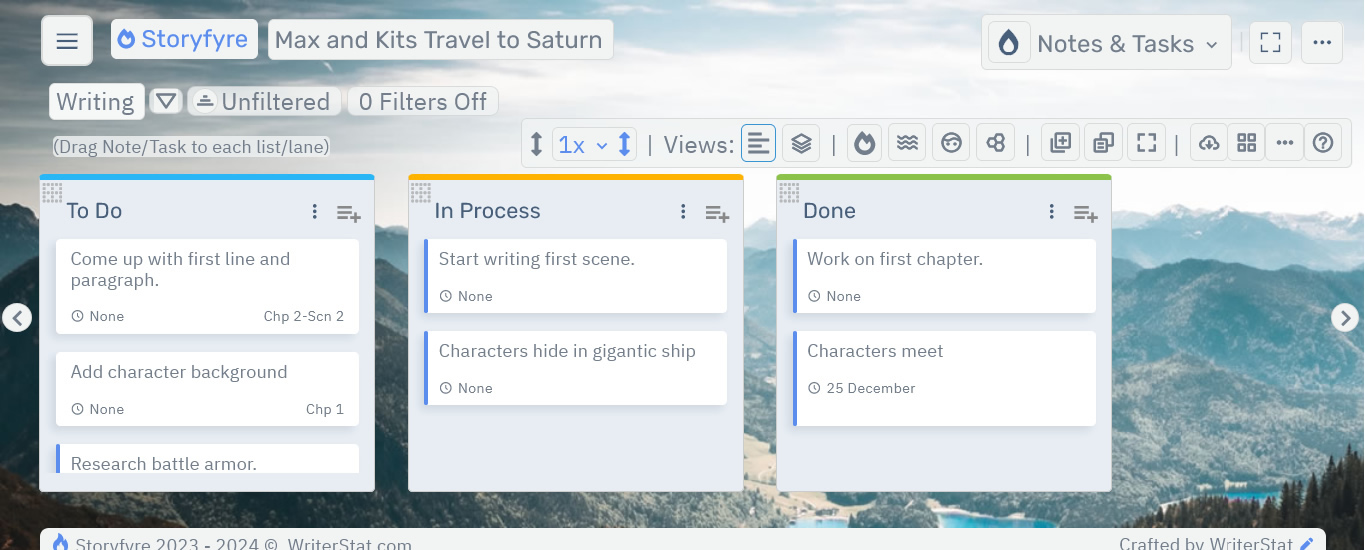
Lists/Lanes are the containers for your Note/Task/Texts in your Notes & Tasks.
What this Page Covers
Basics
A few things to get you rolling.
- Lists/Lanes are laid out horizontally across the Notes & Tasks work area.
- You can have unlimited lists/lanes.
- You can edit a List's/Lane's name, synopsis/description, highlight color, and other things.
- Lists/Lanes contain notes/tasks/texts your choice. More will be explained in the Notes & Tasks: Notes/Tasks/Texts Help Area
- You can order, reorder, and move Lists/Lanes by dragging and dropping them where you want.
Get Started
You can add/create, edit, remove, order/reorder/move lists/lanes.
Add/Create: List/Lane
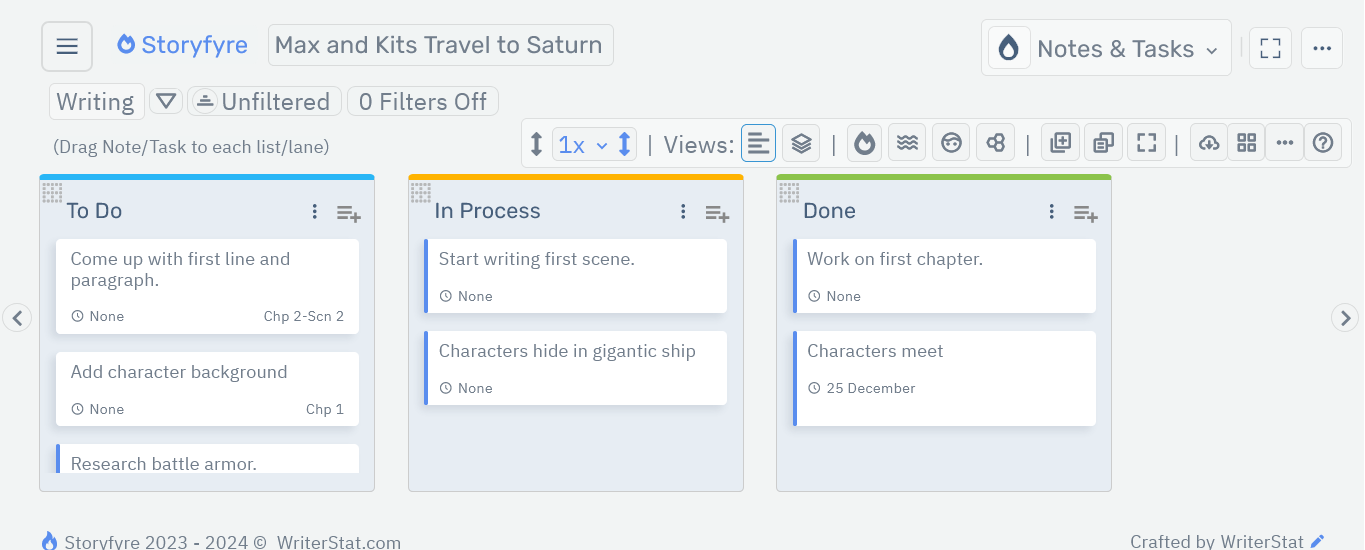
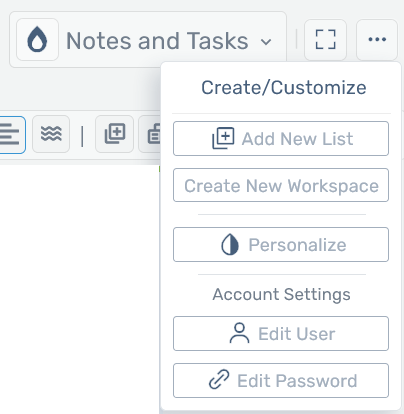
There are currently two ways to Add/Create a new List/Lane on the Notes & Tasks.
From the Notes & Tasks Toolbar, select the Add New List/Lane icon.

Or on the top menu, select the ellipsis menu and select the Add New List/Lane icon from the Create/Customize Menu.
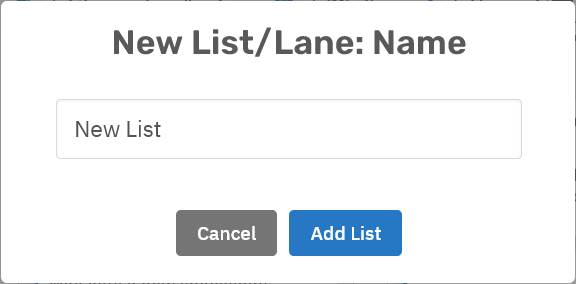
Next enter the list/lane name in the list/lane name panel, then select the Add List/Lane button to add.
This will add a list/lane to the end of your lists/lanes in the notes & tasks work area. You can then move them anywhere you want.
(We will be adding a new way in the next version to directly and easily create and add lists/lanes anywhere in the notes & tasks work area.)
Edit: List/Lane
There are two ways to Edit List/Lane information, name, synopsis/description, color, and other things on the Notes & Tasks Work Area.
Click/Tap on the list/lane name to open the List/Lane Edit Panel.

Or click/tap on the list/lane ellipsis menu button just to the right of the list/lane name and select Edit to open the List/Lane Edit Panel.

Selecting either will open the list/lane edit panel.
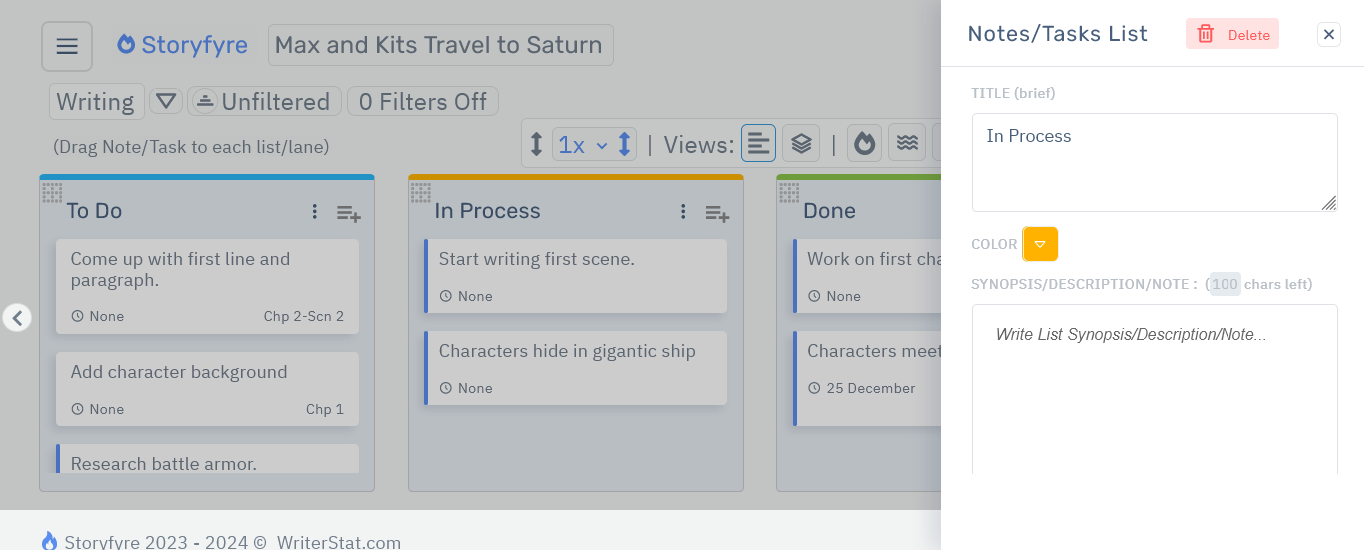
Changes made on the List/Lane Edit Panel are automatically saved for you.
Remove: List/Lane
There are two ways to Remove a List/Lane on the Notes & Tasks Work Area.
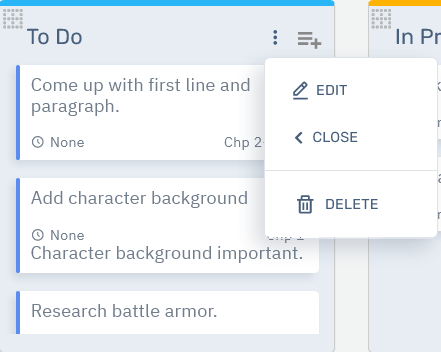
Remove a List/Lane by opening the list's/lane's Edit Panel and selecting the Delete button on top.
Or click/tap on the list's/lane's ellipsis menu button just to the right of the list/lane name, of the list/lane you want to remove, and select Delete to remove the List/Lane.
On the confirm 'Delete this List/Lane?' popup click the 'Yes, delete it.' button to permanently remove the list/lane.
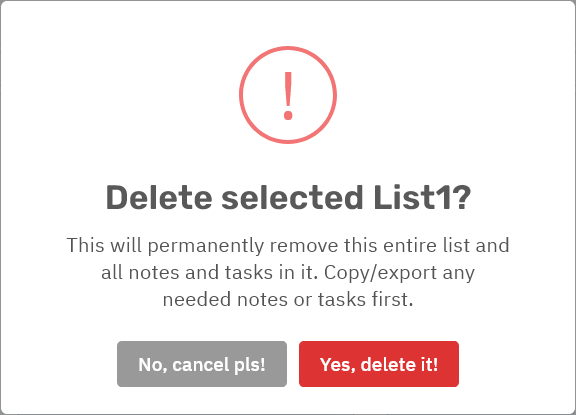
Remember: You will not be able to recover the list/lane or its notes/tasks/text contents after it is removed. All text and items inside a list/lane will be permanently removed.
So be sure to make a personal backup of any text/images etc... for that notes & tasks list/lane that you'd like to save before removing the list/lane.
Order/Reorder/Move: Lists/Lanes
To reorder and move a List/Lane and its contents to a different place in the Notes & Tasks Work Area:
Use your mouse to hover over or tap(mobile) the List/Lane move icon found in the upper left corner of the list/lane you want to move.

It will change into a List/Lane drag/move icon.
Click and hold with your mouse or touch and hold(mobile) the list/lane drag/move icon.
Drag and drop the list/lane horizontally to the new place in the lists/lanes where you want it.
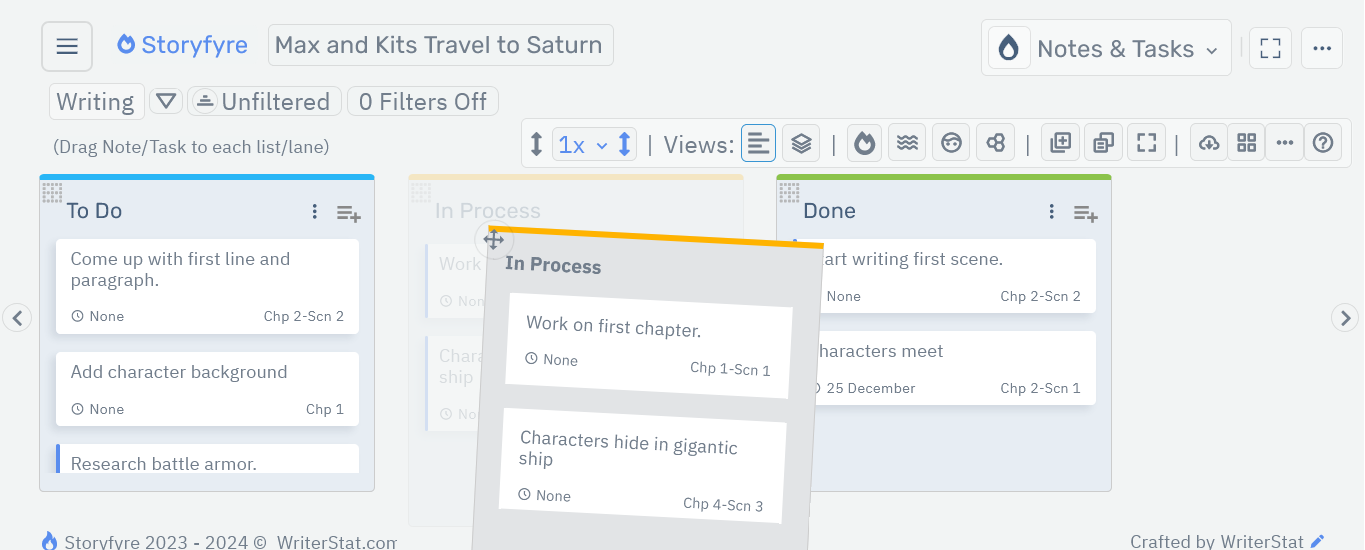
If the place where you want to move/drag and drop the list/lane to is hidden off the viewing screen/area.
Drag/move the list/lane to the edge of the screen and the screen will automatically scroll to allow you to drop/place it.
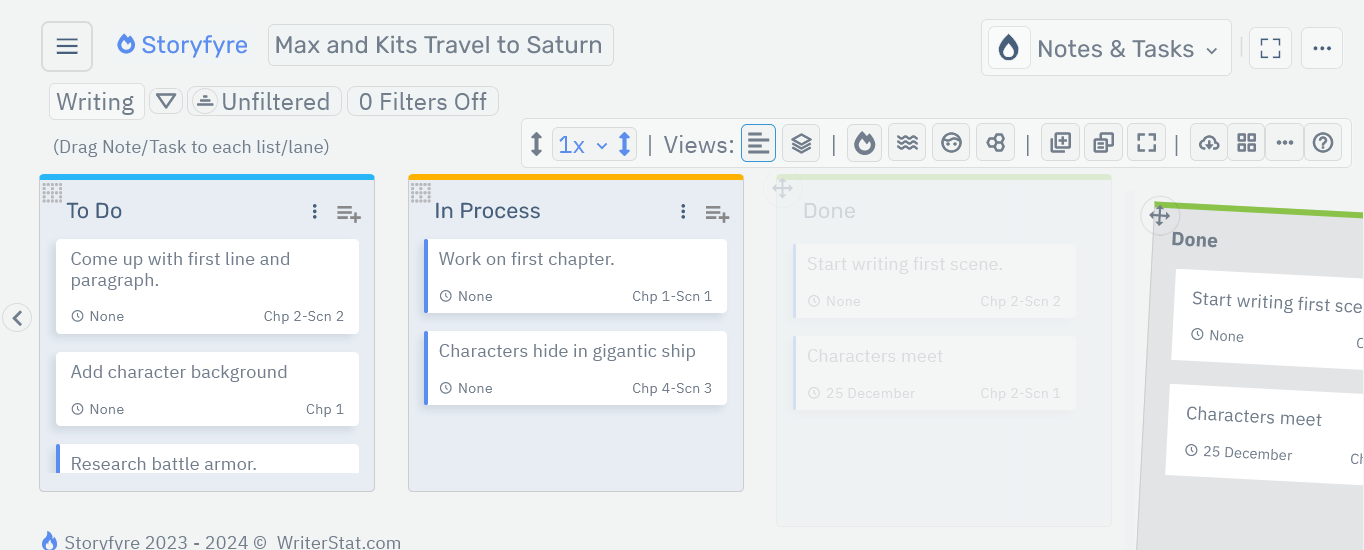
Changes made are automatically saved for you.
You can always reorder lists/lanes at any time, to try different things.
Note: Dropping a List/Lane outside of the Notes & Tasks Work Area will return it to its original location. So when in doubt, drag the list/lane out of the work area and it will return to its original location.
We use move/drag icons for lists/lanes because it's easier for users and it allows our software to work on all smart devices of any size, smart phones, tablets, laptops, desktops and to use on any operating system.
Limits
We know of some limits within the Lists/Lanes area, that we will be addressing with future updates.
Currently lists/lanes add to the end of the lists/lanes area in the notes & tasks work area when creating them and can then be moved anywhere you want. We will be adding a new way shortly to directly and easily create and add lists/lanes anywhere in the notes & tasks work area, and it should be released in the next version.
We will also be adding another new way to move and reorder lists/lanes to be released in the next version.
We will be taking feedback on the List/Lane edit panel in this version.
Storyfyre is growing daily, let us know what we can include, change, update. We appreciate your help.