Scenes Outline: Scenes/Beats
March 5, 2026 vers. 2.0
Let's Begin
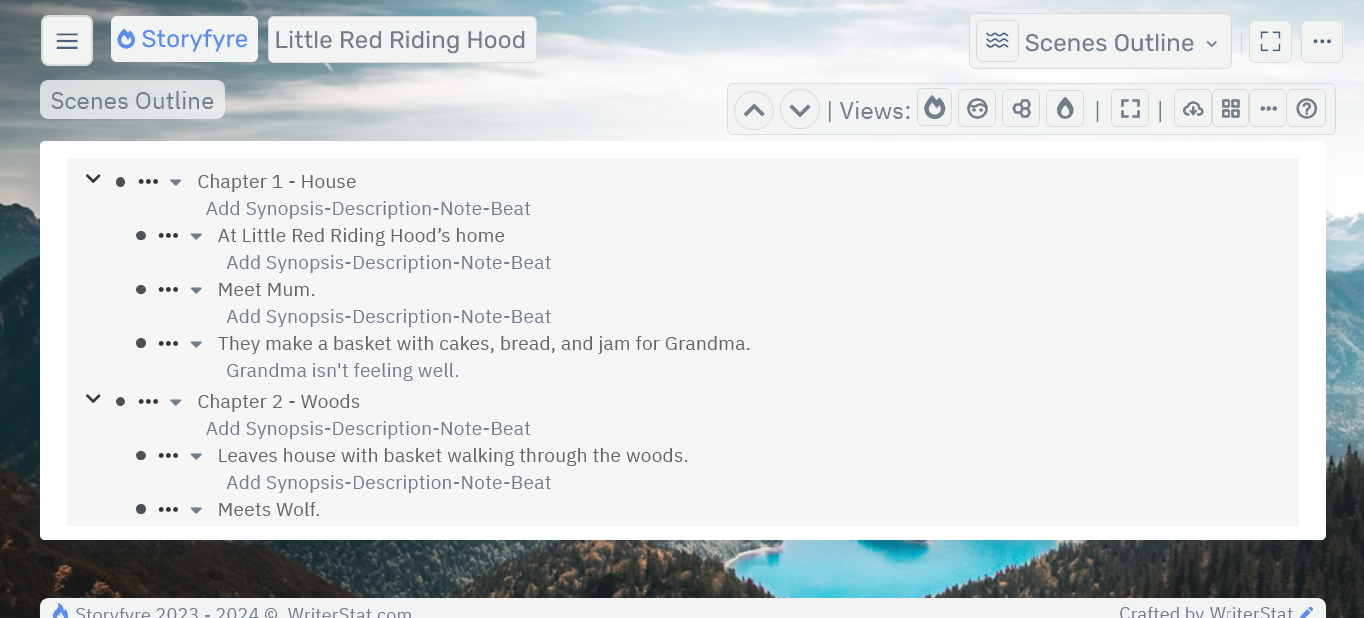
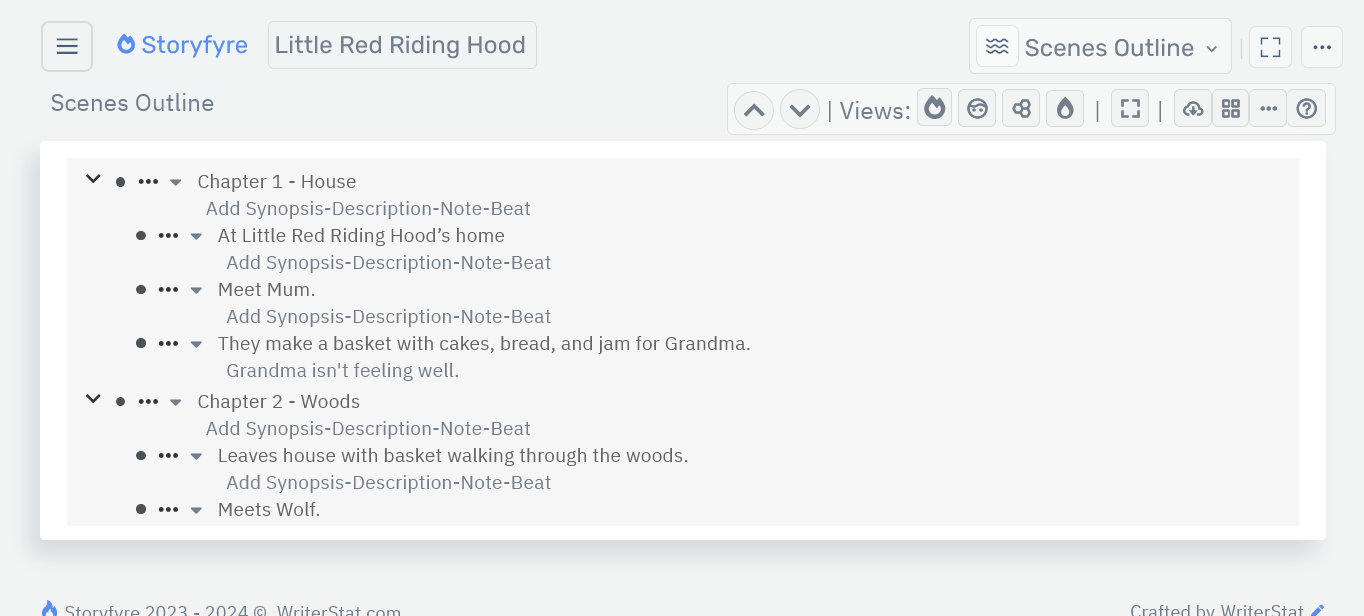
Use Scenes-Beats or scene goal text to map your Scenes Outline/Story Map.
Place Scenes-Beats or scene goal text in your chapters to map out your Scenes Outline/Story Map.
Scenes-Beats can also be considered sections in your story.
Edit Scenes-Beats to place synopsis/description/goal/beat/text inside them, select highlight colors, tag them with/select connected Arcs/Filters/Tags, set target dates, set or upload images, and more.
What this Page Covers
Basics
A few things to get you rolling.
- Scenes-Beats are placed vertically inside the Chapters in the Scenes Outline work area.
- You can have unlimited Scenes-Beats, and 10 inside a chapter. If you happen to need more drop us a note.
- You can edit a Scene/Story Beat's title, description/text, highlight color, tag/connect story arcs/character arcs/filters, target date, and other things.
- You can move, order, and reorder Scenes-Beats by dragging and dropping them where you want.
- You can tag/connect Scenes-Beats with Story Arcs, Character Arcs, Custom-User-Story Tags inside the edit area for each scene-beat.
- And then filter/view using the toolbar and the Filters Area located in the Scene Map View area.
- *In future versions you'll also be able to use the Filters Area here in the Scenes Outline View.
Get Started
You can add/create, edit, remove, move/order/reorder Scenes-Beats.
Get and finish the story that you want. In the way you want.
*In future versions you'll also be able to filter and view specific Scenes-Beats using the toolbar and a Filters Area above the toolbar. You'll be able to also filter your view based on Arc, Filter or Tag. Same as you can in the Scene Map.
Add/Create: Scenes-Beats
There are currently 2 ways to Add/Create a scene/story beat in a chapter on the Scenes Outline.
1. In the Outline area, select the ellipsis button for the chapter to add to, to open its outline menu.
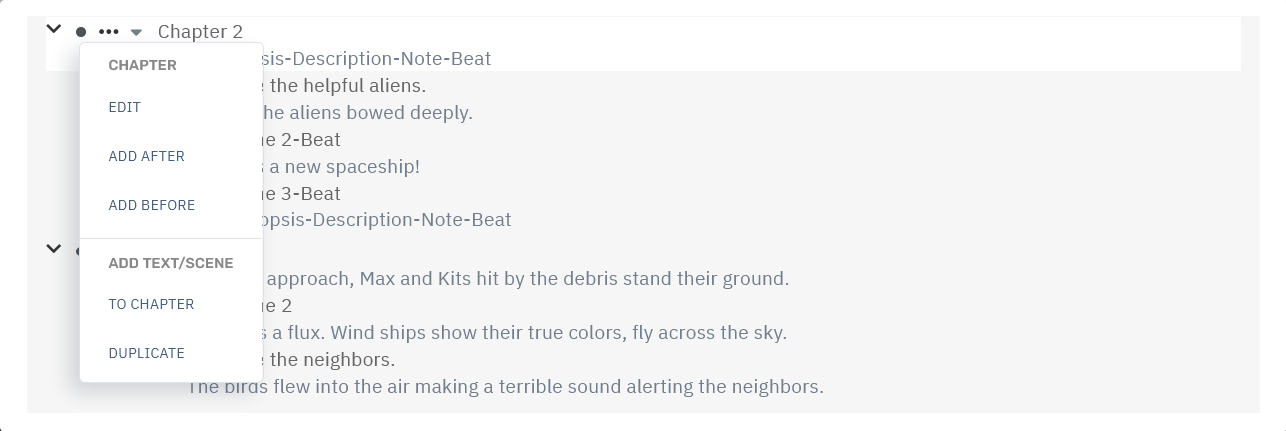
Select Add Text/Scene To Chapter to add a scene/story beat to that chapter in the Outline area.
2. In the Outline area, select the ellipsis button for the scene/story beat in a chapter where you want to add a scene/story beat, to open its outline menu.
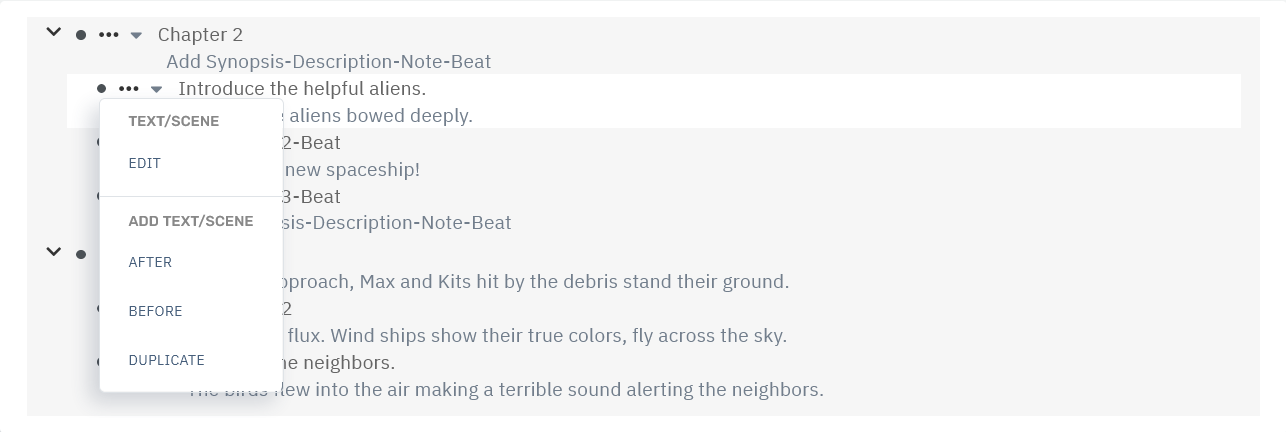
Select Add Text/Scene Before or After to add a scene/story beat to that chapter in the Outline area.
Next enter the scene-beat number or set the scene-beat title in the text/scene name panel so you can keep track of it on the Scenes Outline, then select the Add Text/Scene button to add.
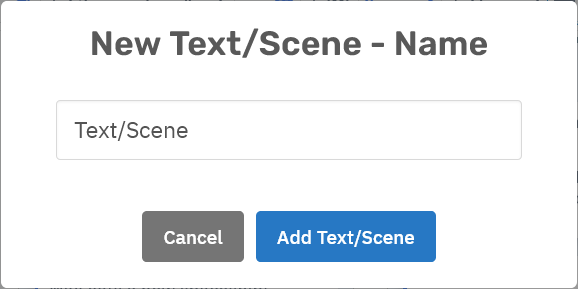
This adds a new scene-beat to the chapter.
Edit: Scenes-Beats
There are 2 ways to Edit Scene/Story Beat information, title, color, synopsis/description in the Outline area.
1. Click/Tap(touch) on the Scene/Story Beat Title or Synopsis-Description-Note-Beat to open the Scene/Story Beat's Edit Panel.

2. Click/tap(touch) on the Scene/Story Beat's ellipsis button to open its outline menu and select Edit to open the Scene/Story Beat's Edit Panel.
Selecting either will open the scene/story beat edit panel.
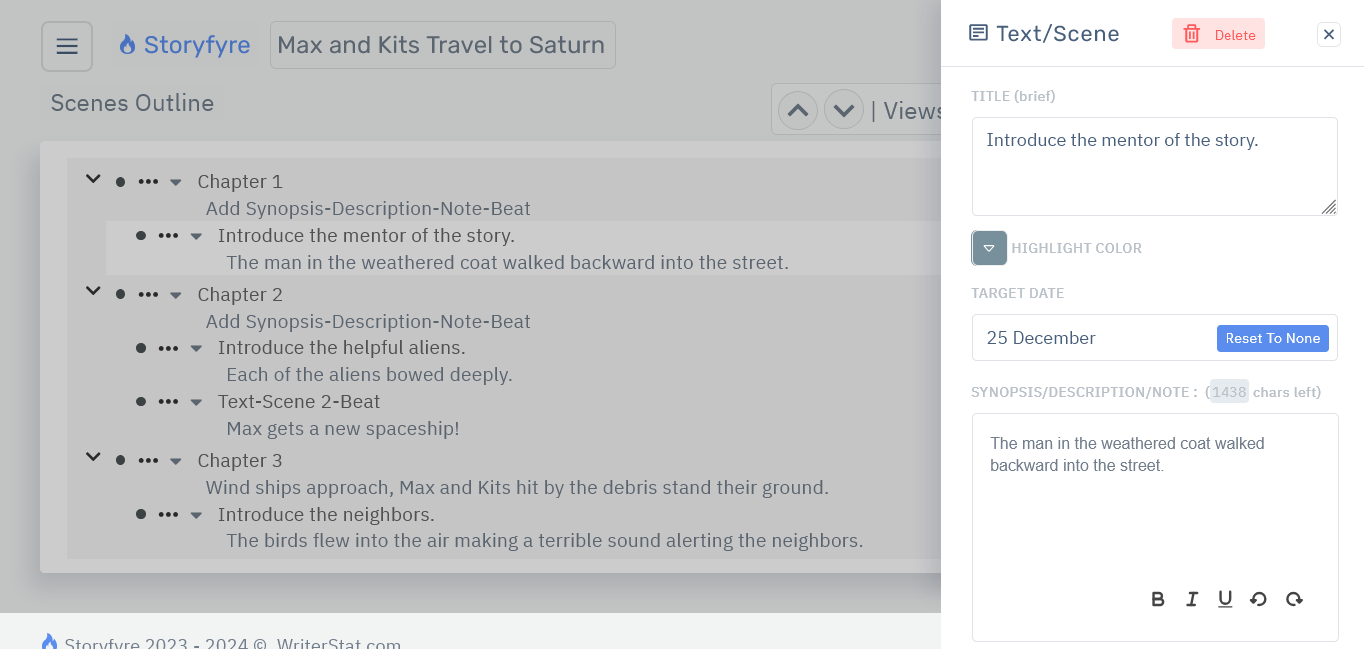
Any changes made on the Scene/Story Beat Edit Panel are automatically saved and updated/reflected in the Scene Map/Story Map/Story Bible and vice versa.
Remove: Scenes-Beats
Remove a scene-beat by opening its Edit Panel and selecting the Delete button on top.
On the confirm 'Delete this Scene-Beat?' popup click the 'Yes, delete it.' button to permanently remove the scene-beat.
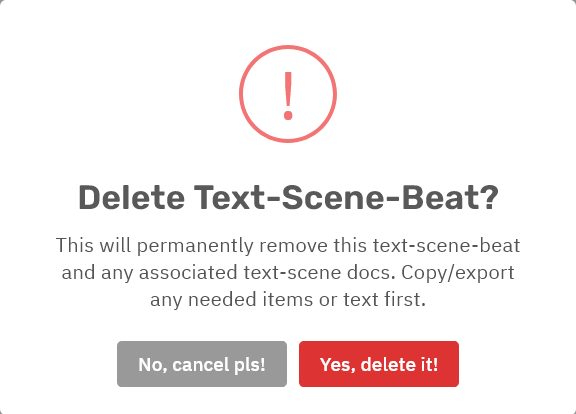
* Remember: You will not be able to recover the scene-beat or its scenes outline contents after it is removed. All text and items inside will be permanently removed.
So be sure to make a personal backup of any text/info/images etc... you'd like to save before removing it.
Order/Reorder: Scenes-Beats
To reorder and move a Scene/Story Beat and its contents to a different place in the Scenes Outline area:
Click and hold with your mouse or touch and hold(touch) a scene-beat's bullet point.
Drag and drop the scene-beat vertically to the new place in the chapters where you want it.
A label for the item being moved(dragged) will move through the outline area and a line will show up where you can drop the scene-beat in the outline area, quick and easy.
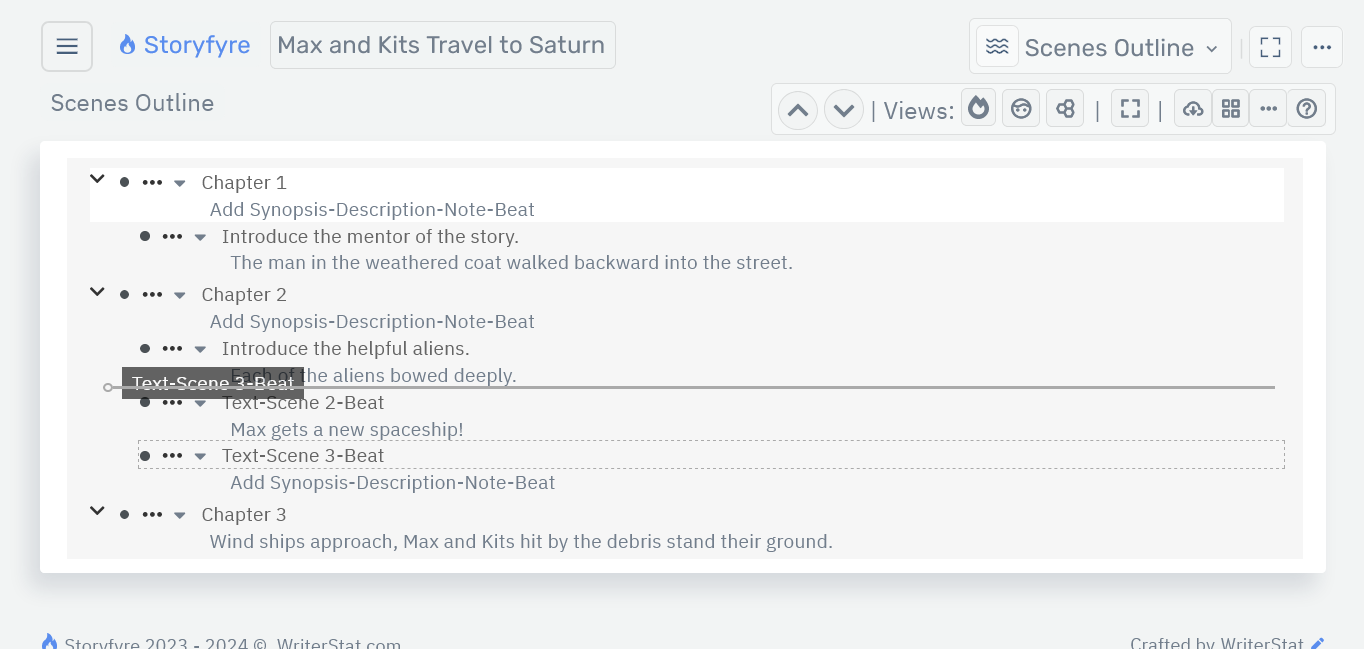
If the place where you want to move/drag and drop the scene-beat to is hidden off the viewing screen/area of the outline area:
Drag/move the scene-beat to the edge of the outline area and the outline area will automatically scroll to allow you to drop/place it.
Changes made are automatically saved for you and updated/reflected in the Scene Map/Story Map/Story Bible and vice versa.
You can always reorder scene-beats at any time, to try different things. And then reorder them back.
Note: Dropping a Scene-Beat outside of the Scenes Outline Work Area(Outline Area) will return it to its original location. So when in doubt, drag the scene-beat out of the work area and it will return to its original location.
Tip: Use the bullet point menu to open/close/hide/show scene-beat text/description to make dragging scenes-beats and moving them around easier. Open a scene-beat's bullet point menu by clicking a scene-beat's bullet point.
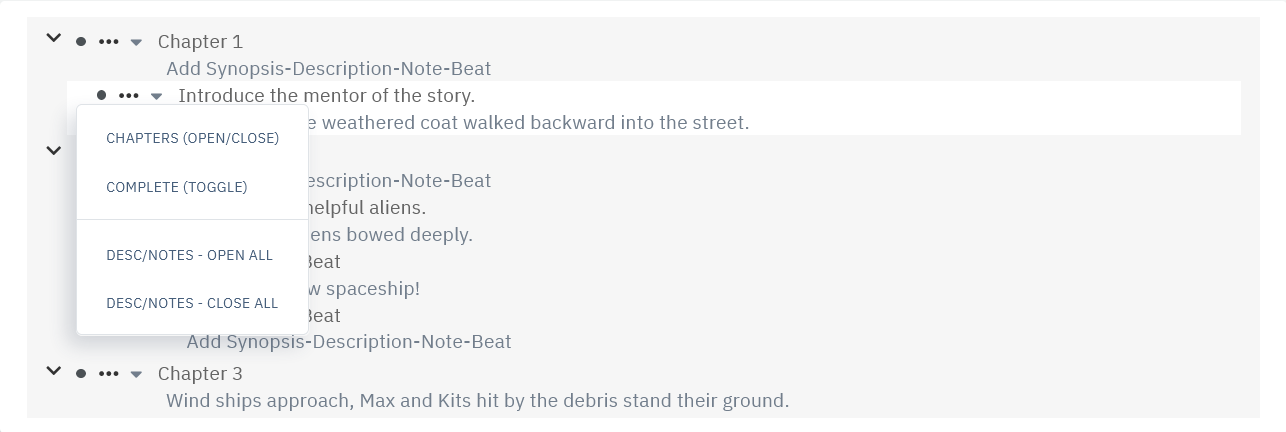
For more, View: Scenes Outline: Work Area Navigation
We use bullet points in the Scenes Outline area to move/drag scenes-beats because it's easier for users and it allows our software to work on all smart devices of any size, smart phones, tablets, laptops, desktops and to use on any operating system.
Limits
We know of some limits within the Scenes-Beats area, that we will be addressing with future updates.
We will be adding another new way to move and reorder Scenes-Beats to be released in the next version.
Storyfyre is growing daily, let us know what we can include, change, update. We appreciate your help.