Scene Map: Toolbar
March 5, 2026 vers. 2.0
Let's Begin
The Scene Map Toolbar is the navigation hub for the Scene Map area and takes you where you need to be.
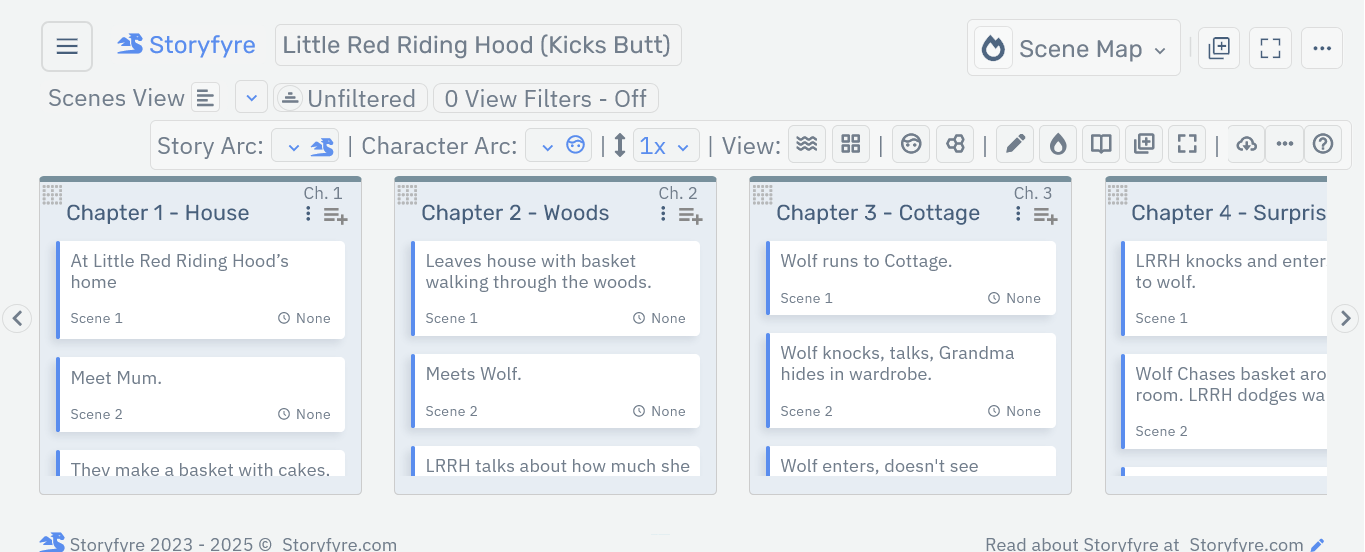
The Scene Map Toolbar contains the Story Arcs and Character Arcs to quick filter the view and drill down on the areas you are interested in. Plus all the navigation and Scene Map functionality for the current view.

Select different view styles and their various functionalities, Scenes View, Chapters View, Plotline View in the View/Filters Area above the Toolbar. Selecting a new view style changes the Scene Map work area's layout.

More filters, tags, custom tags are available in the View/Filters Area above the Toolbar.
A combination of filters and view styles should give you any view of your story that you need to see.
The Scene Map View/Filter Area is found just above the Scene Map Toolbar. Selecting the Filtered/Unfiltered button turns the filters on and off. Selecting the Filters count button opens the filters edit panel. More about using the filters can be read below.
From the Scene Map Toolbar you can open the Scenes Outline, Projects, Characters, Story Settings, Write, Notes & Tasks, and ProofRead. Each of these open into their own areas with their own functionality.

On the Scene Map toolbar you'll also find the Add New Chapter icon, the Scene Map full screen icon, the download icon, customize icon, and the help icon.
All the Storyfyre area toolbars near the end have the Download, Customize, and Help buttons. Opening the areas fast when you need them.
The Scene Map Toolbar quickly lets you navigate to any area or functionality that you want. Everything you need and nothing you don't, to help you get your book done fast and clear.
What this Page Covers
Toolbar Basics
Here's a quick view of the Scene Map Toolbar functionality.
Areas
- Story Arc - Filters View based on Story Arcs selected. Read more in Filters Help Area.
- Character Arc - Filters View based on Character Arcs selected. Read more in Filters Help Area.
- Layout Height - Adjusts the height of the layout items in the Scene Map work area.
- View - Scenes Outline, Projects, Characters, Story Settings, Write, Notes & Tasks, ProofRead.
- Scenes Outline - Opens the Scenes Outline in its own Scenes Outline area and has its own specific outliner functionalities. Displays/edits the Chapters, scenes, etc... in vertical outline and text format. All changes sync with the Scene Map: Scenes View automatically and vice versa. See Scenes Outline
- Projects - Opens the Project Area for current and archived projects - See Projects Area
- Characters - Opens the Characters in its own Characters area and has its own specific functionalities. Displays/edits the Characters, Character images, Character attributes. Manage your story's characters here. See Characters
- Story Settings - Opens the Story Settings/Story Locations/Story & World Rules in its own Story Settings area and has its own specific functionalities. Displays/edits the Story Settings/Story Locations/Story & World Rules, Story/World Groups, Story/World Items, images, and attributes. Manage your story's story settings here. Any of the things. See Story Settings
- Write - Opens the Write View in its own Write area and has its own specific functionalities. Write the text of your story here. Create Chapters and Scenes and write your story here. The Writing App automatically syncs with, creates, and updates the Scene Map behind the scenes for you. So you can write all of your drafts here and Storyfyre will create a scene map for it, that you can use to think through the story with, move/plan chapters, scenes, story beats with. See Write
- Notes & Tasks - Opens the Notes & Tasks in their own Notes & Tasks area and has its own specific functionalities. Create, manage, track, drag/drop, and complete this project's new writing notes, story notes and tasks, change notes, draft notes, thoughts, rewrite ideas, ideas, writing tasks, revision notes, to work in. Displays/edits the Notes & Tasks, Notes & Tasks images, Notes & Tasks attributes/descriptions/beats. Manage your story's notes & tasks here. See Notes & Tasks
- ProofRead - Opens the ProofRead View in its own ProofRead area and has its own specific functionalities. ProofRead and review the text of your story here. Find things to change? Make proofread changes here. Use the ProofRead Area as a story writing template for the novel, book, or story you are writing and more. The ProofRead Area automatically syncs with, and updates the Scene Map behind the scenes for you. See ProofRead
- Add New Chapter - Adds a New Chapter to the Scene Map Work Area.
- Fullscreen - Makes the Scene Map Fullscreen.
- Download - Download/Export/Backup Scene Map, Story Map, Story Bible, Story Writing template, Text-Data files, WriterStat Files. See Scene Map Download/Export/Backup Help
- Customize - The Customize Menu contains and allows you to select the Layout(condense/uncondense) button and Personalize panel button - change software background image and more here.
- Help - See Help Area
Scene Map: View/Filter Area
The Scene Map View/Filter Area is found just above the Scene Map Toolbar. (Read more in Filters Help Area)
The current selected Scene Map View is displayed and is selectable in the Scene Map View/Filter Area. The Scene Map View defaults to the Scenes View, which shows Chapters, Scenes, Story Beats, Arcs, Tags etc...
Scene Map View Selections:
- Scenes View - Opens the Scenes View in Scene Map Work Area. Displays Scenes and Chapters.
- Chapters View - Condensed chapters view: Opens the Chapters View in Scene Map Work Area. Displays Chapters and chapter(scenes, scene info...) using interactive hover abilities. In development.
- Plotline View - Opens the Plotline View in Scene Map Work Area. Displays Story Arcs, Plotlines. In development.
Selecting the Filtered/Unfiltered (filters on/off)button will turn the filtered view on and off.
The icon indicator changes and lights up when Filtered view is selected(on). The icon indicator changes back to its original unlit status when Unfiltered view is selected(off).
- The Unfiltered view shows you everything, with no filters.
- The Filtered view displays the Scene Map based on the selected filters/tags, Story Arcs, Character Arcs, and the corresponding marked Scenes/Story Beats (tagged inside their edit panels for those), focusing your view.
Selecting the View Filters Count button(View/Set) all the way to the right in the View/Filter Area will open the filters side panel.
The filters side panel is where you can select, unselect, add, edit, reset, or delete filters, tags, Story Arcs, Character Arcs, Story Setting Arcs, and later on Series Arcs.Note: Story Arcs and Character Arcs can only be added, edited, renamed, deleted from the Story Arc and Character Arc dropdown areas on the Scene Map Toolbar.

The specific functionality for the Scene Map: View/Filter Area is discussed here: Scene Map: Filters, Story Arcs, Character Arcs
Limits
We know of some limits within the Scene Map, in each area we will try and list the ones we know of at the bottom, and ones which we intend to address with our future updates.
The Scenes View has no limits.
The Chapters View is currently being tested and should be released in a future version.
The Plotline View is currently being tested and is in construction and should be released in a future version.
The Story Arcs and Character Arcs are now completely and fully functional(no limits).
The View and Filters Display area and Filter's Buttons in the filters display area are now completely and fully functional(no limits).
Scenes/Story Beats are associated/connected/marked to Story Arcs, Character Arcs, Tags, Filters, in the scene's/story beat's edit panel.
Storyfyre is growing daily, let us know what we can include, change, update. We appreciate your help.